1. CherryBytes
  2. Apps
  3. Age Verification Pop-up
01 / Wix app · Age-restricted sites
Age Verification Pop-up

Age Verification Pop-up: an age gate for your Wix site, managed from your dashboard

Ask visitors to confirm their age before they can see or use your site. Choose the minimum age, how visitors answer and what happens to anyone under age, then preview every change on your real site before it goes live.

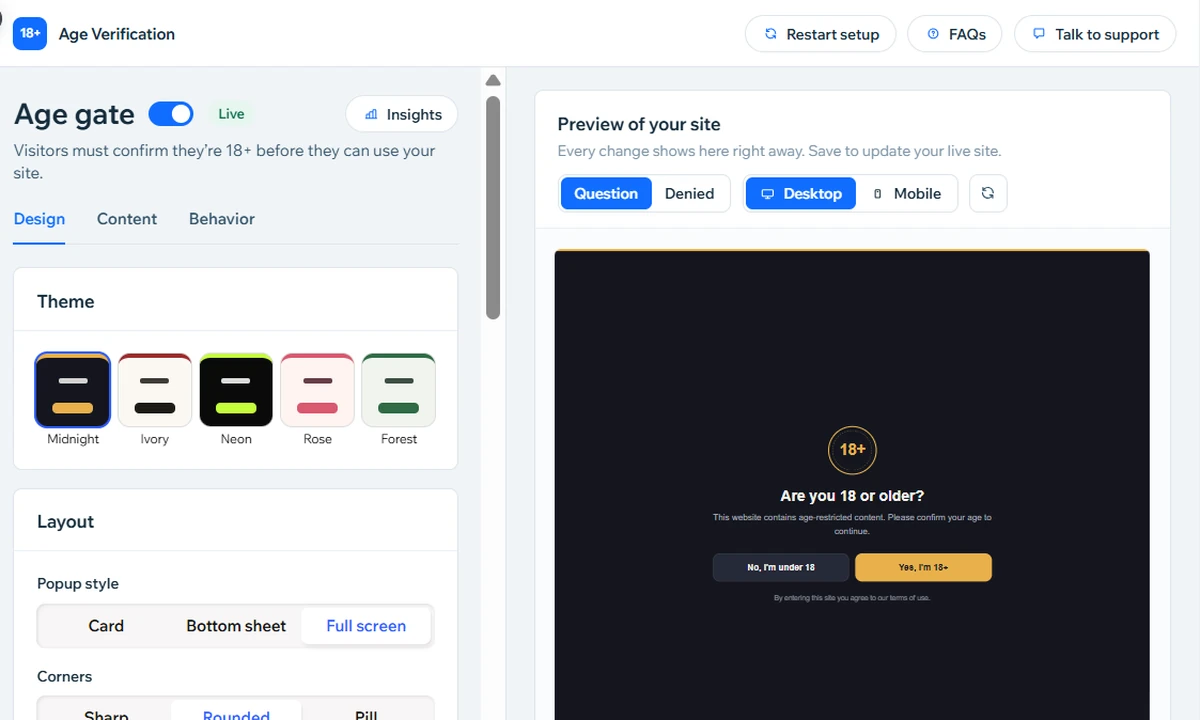
Age Verification Pop-up editor with theme settings beside a live site preview
Editor with live site preview
The problem

Why a basic age pop-up isn't enough

If your Wix site sells or shows age-restricted products such as alcohol, vaping and tobacco, CBD, gambling or adult content, visitors need to confirm their age before they get in. Plenty of pop-ups only look like an age gate. Wix age verification has to hold up once a visitor tries to get past it.

  1. Age needs to come first. Visitors should answer the age question before they see your products or content, not after they've browsed.

  2. Simple pop-ups are easy to get around. Visitors can press Esc, click outside the box or hide it with browser tools, and the site underneath is fully usable.

  3. Under-age visitors try again. A visitor can answer "No", reload the page and answer "Yes". A gate that forgets the first answer doesn't stop them.

  4. You can't tell whether it's working. Without numbers, you don't know how many visitors were asked, how many passed or how many left.

Features

Age verification features for your Wix site

You set everything up from your Wix dashboard.

Feature 01

A full-screen age gate that stays until visitors answer

The pop-up covers the whole screen and sits above all your site content.

While it's open, clicks, scrolling, keyboard focus and text selection don't reach the site underneath. Pressing Esc or clicking outside doesn't close it, and if someone removes or hides it with browser tools, it comes back. If our server is down or the visitor's browser blocks storage, the pop-up still shows. The gate fails closed, not open.
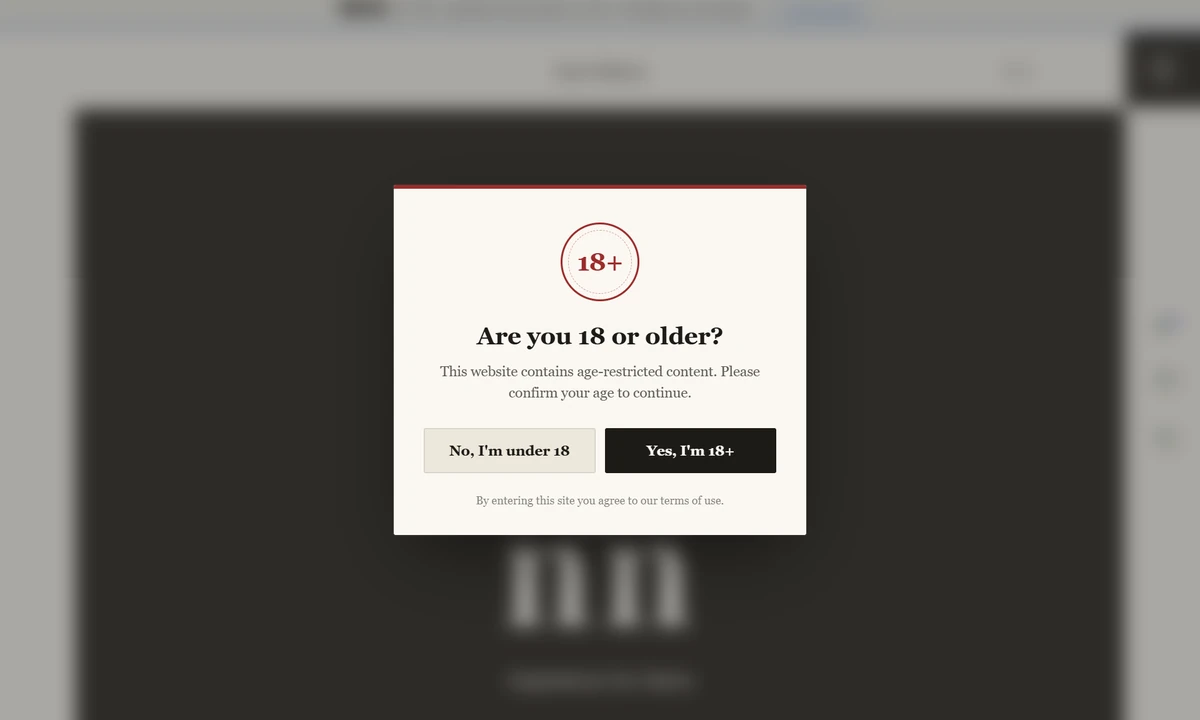
Age gate in the Ivory theme displayed over a blurred website
Age gate · Ivory theme
Feature 02

Set the minimum age and how visitors confirm it

Choose any minimum age from 13 to 25.

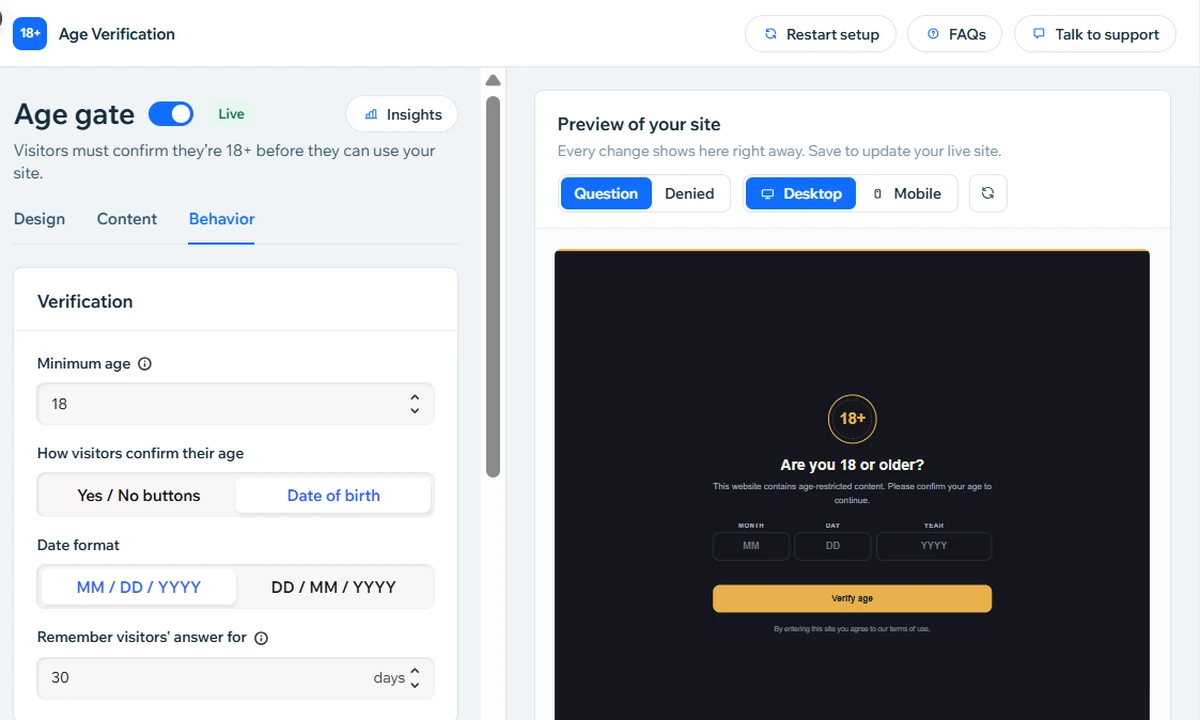
Visitors can confirm with simple Yes / No buttons or by entering their date of birth, in MM / DD / YYYY or DD / MM / YYYY format. You can have a "Yes" remembered for a number of days you choose, so returning visitors aren't asked on every visit.

Age verification settings for minimum age, date-of-birth confirmation and answer retention
Minimum age and confirmation settings
Feature 03

Keep under-age visitors out

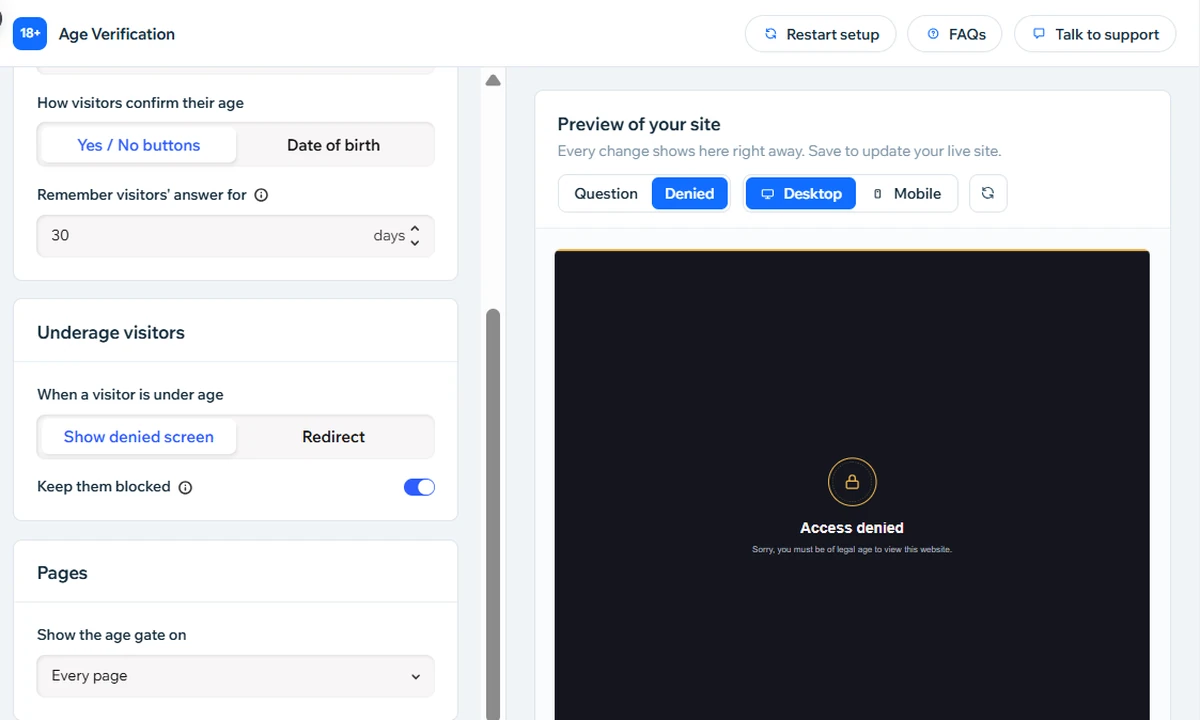
Decide what happens when a visitor is under age.

You can show a denied screen with your own message, or send them to another web address. A "No" can be remembered for the same number of days, across tabs and browser restarts, so reloading the page doesn't give them a second try. If the redirect page is on your own site, the app automatically leaves that page out of the gate.

Under-age visitor settings with denied-screen and redirect options
Under-age visitor settings
Feature 04

Edit with a live preview of your own site

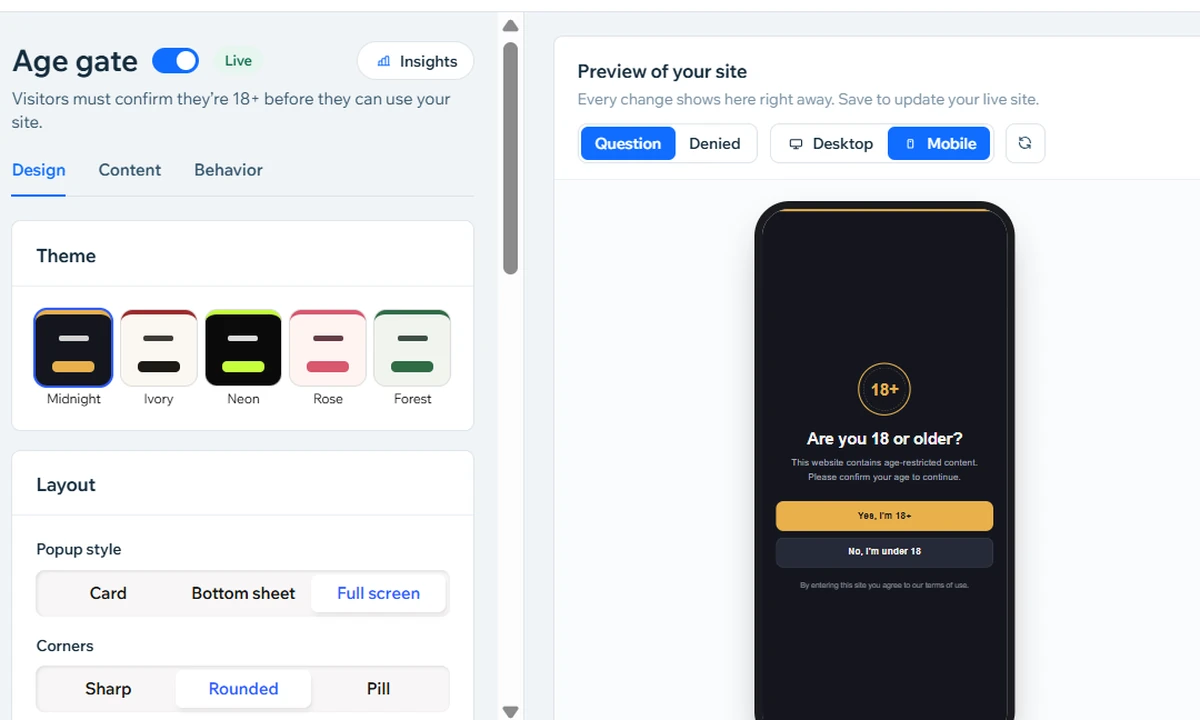
The settings panel sits beside a preview of your real site with the pop-up drawn on top.

Each change appears in the preview straight away. Save puts it live and Discard undoes it. You can preview on desktop or mobile, switch between the age question and the denied screen, and replay the entrance animation. One switch turns the age gate on or off, and a Live / Off badge shows its status.

Age gate editor showing a mobile site preview with the live switch
Editor · Mobile preview
Feature 05

Built with accessibility in mind

The pop-up is built as a proper dialog for screen readers.

It supports keyboard access and uses readable colour contrast.

Feature 06

Insights on how your age gate is working

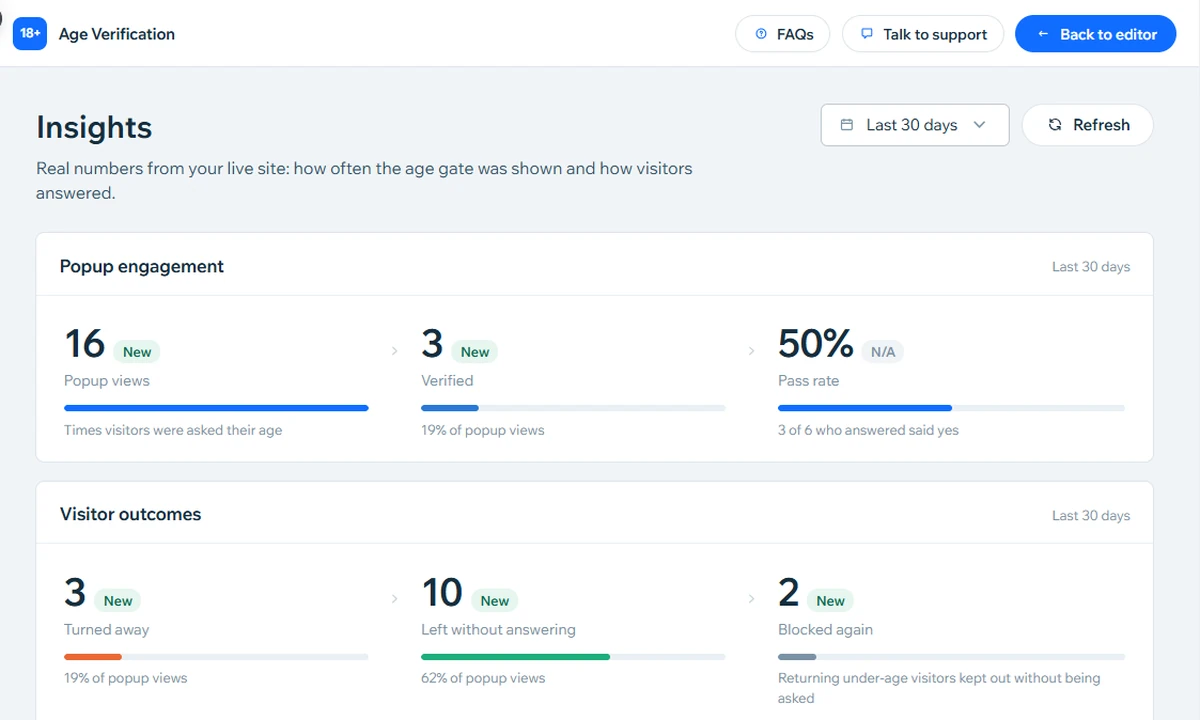
You can see pop-up views, verified visitors and your pass rate.

Outcomes cover visitors who were turned away, visitors who left without answering, and blocked visitors who came back. Each number shows its change against the previous period. A donut chart and a day-by-day chart or table cover the last 7, 30 or 90 days.

Insights dashboard showing pop-up views, verified visitors, pass rate and visitor outcomes
Insights dashboard
Feature 07

Help from every screen

FAQs, live chat, email support and a "Request a feature" form are available.

You can access them from every screen in the app.

For your Wix site

What it means for your Wix site

Age-restricted products

Alcohol, vaping, tobacco, CBD, gambling or adult content—or any Wix site where visitors should confirm their age.

A gate that holds

Keep the gate in front until visitors answer; Esc, outside clicks, scrolling and reloads won't get around it.

Fewer repeat checks

Remember visitors who pass for a chosen number of days, so returning adults aren't asked on every visit.

Preview before going live

Preview changes on your real site, on desktop or mobile, before switching the age gate on.

Insights you can use

Track pop-up views, verified visitors, pass rate and visitor outcomes across 7, 30 or 90 days.

Age Verification Pop-up asks visitors to confirm their age. It's one part of how you handle age-restricted products or content, so check which requirements apply to your business and location.

How it works

How to set up age verification on Wix

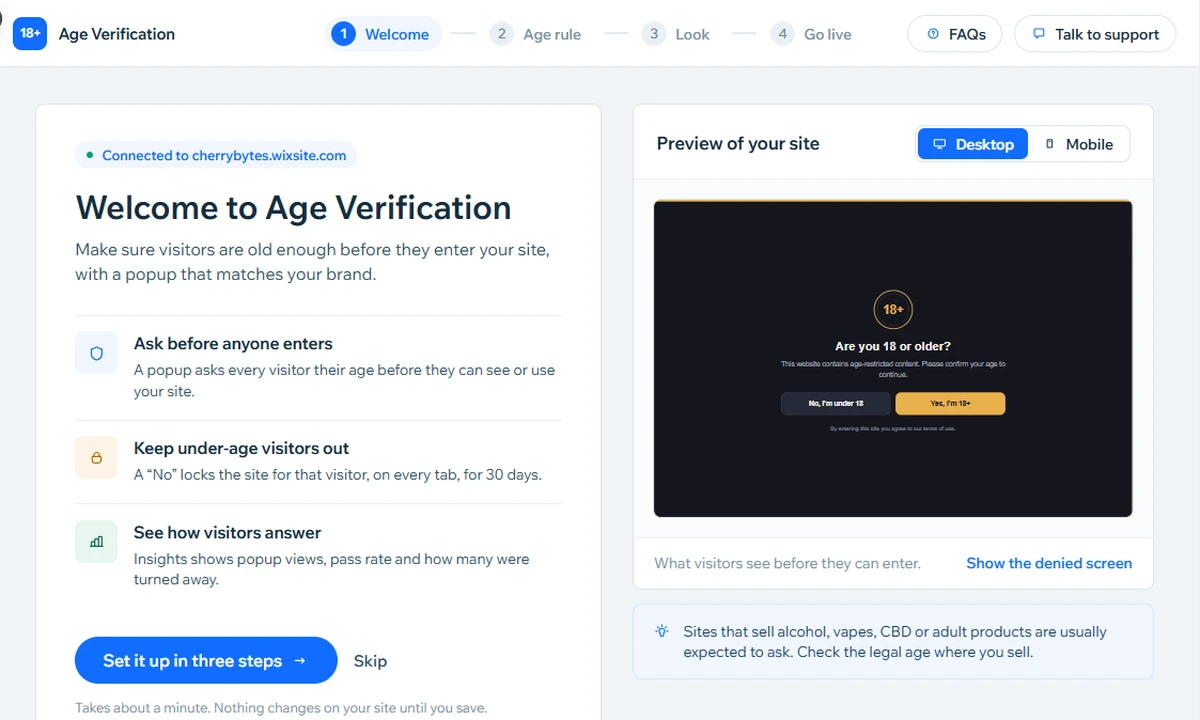
The first time you open the app in your Wix dashboard, a setup guide walks you through three steps, with a live preview at each one. You can skip it and run it again later.

  1. Set your age rule.

    Choose the minimum age, Yes / No or date of birth entry, and what happens to under-age visitors.

  2. Choose the look.

    Style the pop-up and check it on desktop and mobile in the preview.

  3. Go live.

    Switch the age gate on. The badge changes to Live.

  4. Check Insights.

    See how many visitors were asked, how many passed and how many were turned away.

Welcome screen of the Age Verification Pop-up setup guide with a live site preview
Setup guide · Welcome screen
FAQ

Wix age verification: common questions

Can visitors close the pop-up without answering?

No. Pressing Esc or clicking outside doesn't close it, and it comes back if it's removed or hidden with browser tools. Only confirming their age unlocks the site.

What minimum age can I set?

Any age from 13 to 25.

Will visitors who've already confirmed their age be asked again?

You can have a "Yes" remembered for a number of days you set, so returning visitors aren't asked on every visit.

What if an under-age visitor reloads the page?

If you remember "No" answers, the visitor stays blocked for the same number of days, across tabs and browser restarts.

What happens if the app's server is unavailable?

The pop-up still shows, so your site stays locked. The same applies if a visitor's browser blocks storage.

Does the app verify ID or make my site legally compliant?

No. Visitors confirm their own age, with Yes / No or by entering their date of birth. The app doesn't check ID or any database. Some products and regions need stronger age checks, so check which requirements apply to your business.

Add an age gate to your Wix site

Set your age rule, preview it on your own site and go live from your Wix dashboard.

View on Wix App Market